
Call recording
Live Hub can record the calls a bot connection handles, saving the audio as a .wav
file. It is available on Essential plan accounts only, and is charged in addition to
the call. See Account plans and
Live Hub pricing.
Recordings are deleted automatically once the account's retention period expires, which is 30 days by default. See Recording and transcripts.
Enable recording
You enable recording for each bot connection, on the connection's Features tab.
To enable recording on a bot connection:
-
In the Navigation pane, select Bot connections.
-
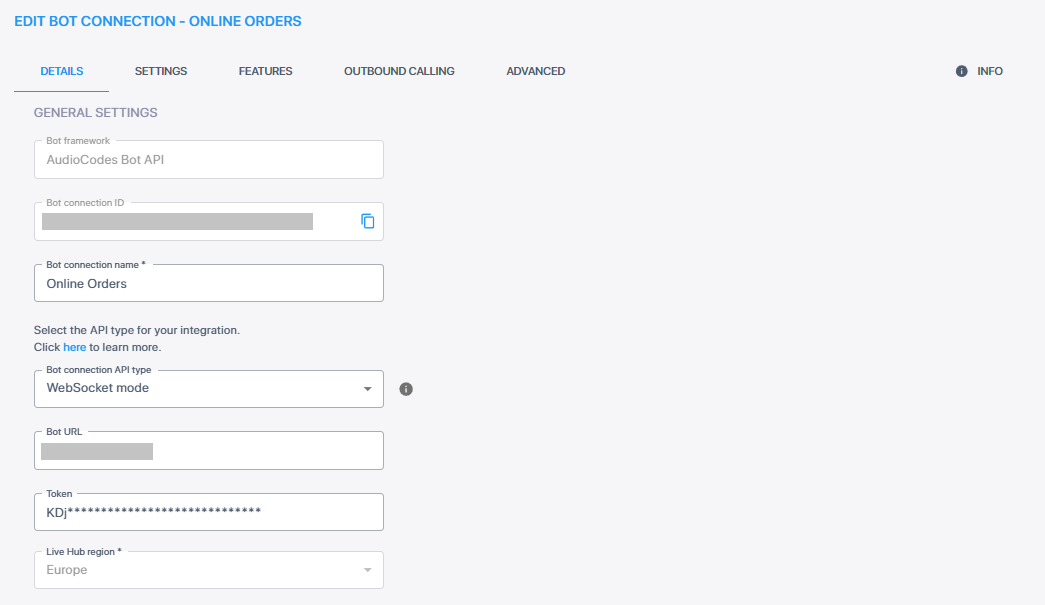
On the bot connection you want to record, click Edit.
-
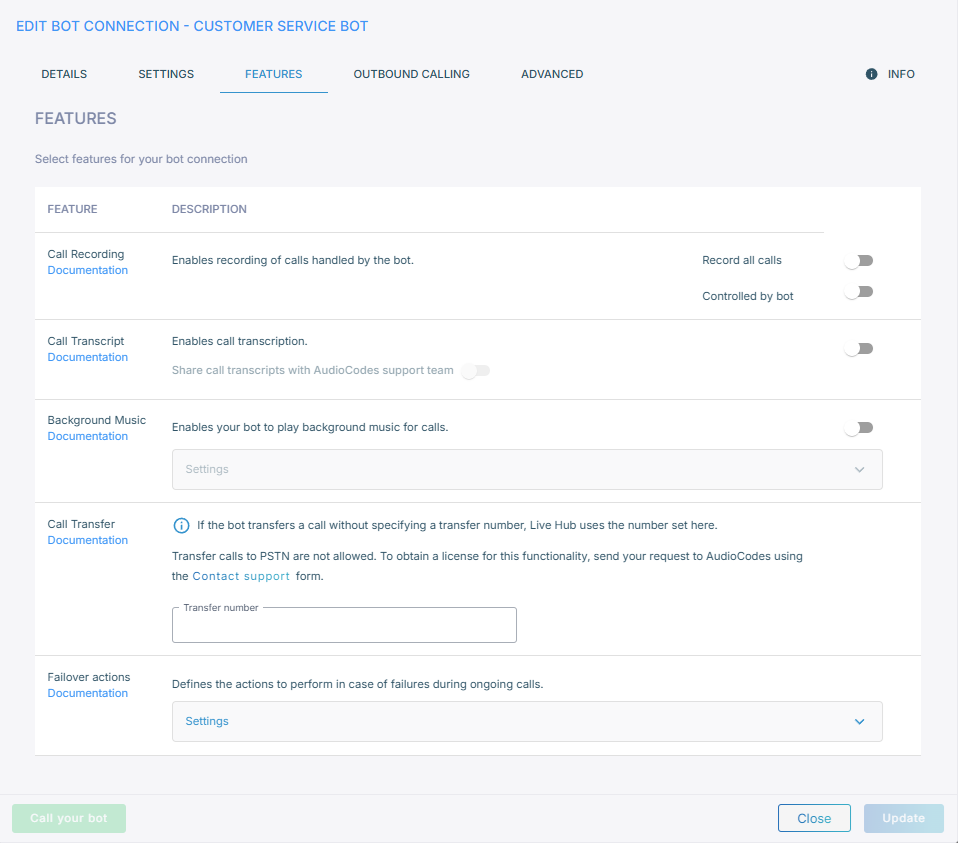
Select the Features tab.
-
Under 'Select features for your bot connection', turn on one of the two Call Recording toggles:
- Record all calls: Live Hub records every call the bot handles, end to end, including after a transfer to another agent. This is the automatic call recording that enterprises commonly use.
- Controlled by bot: Live Hub records only while the bot asks it to, and the bot can stop recording at any point.
Both are off by default, and only one can be on at a time.
-
Click Update.
Recording takes a minute or two to start working the first time you enable it on an account.
Recording set on a routing rule overrides the setting on the bot connection.
How the bot controls recording
With Controlled by bot selected, the bot drives recording by sending AudioCodes Bot API events. There is nothing else to configure.
| Event | What it does |
|---|---|
startCallRecording
|
Starts recording |
pauseCallRecording
|
Stops capturing audio but holds the connection to the recording server open |
resumeCallRecording
|
Resumes after a pause |
stopCallRecording
|
Stops recording and closes the connection to the recording server |
Two optional parameters can accompany startCallRecording:
| Parameter | Type | Description |
|---|---|---|
callRecordingId
|
string | Recording session identifier, forwarded to the recording server. Use it to match recordings against bot conversations. |
callRecordingDestUsername
|
string | Username used in the SIP Request-URI and To header of the INVITE sent to the recording server. |
In HTTP mode, the bot sends:
{
  "activities": [
    {
      "type": "event",
      "name": "startCallRecording",
      "activityParams": {
        "callRecordingId": "KUYdgtofIdi76YpkP09J4J-a:1"
      }
    }
  ]
}
In WebSocket mode, the bot sends:
{
  "type": "activities",
  "activities": [
    {
      "type": "event",
      "name": "pauseCallRecording"
    }
  ]
}
Selecting Record all calls makes Live Hub ignore all four events, because the two modes are alternatives and cannot be combined.
Download and play a recording
You play and download recordings from Call history. Where a call produced several recordings, you select which one to play.